
GitLab integration in the TeachCenter
Using the Git activity, teachers can create and manage GitLab repositories for students in the TU Graz Teaching GitLab directly via the TeachCenter. Students can access their repositories directly via the TeachCenter.
Creating and managing GitLab repositories via the TeachCenter
- Enable edit mode in your course using the slider in the top right-hand corner.
- Click on the plus icon where you want to insert the activity, then select Activity or Resource.
- Select Git.
Adding a Git activity
Configure the settings as required:
- Name: The name shown in the course
- Additional files: You can upload files here, such as a handout.
- Start date: If a date is set here, student repositories will be automatically created at this time if they do not already exist, and students will be granted write access. If no date is set, the repositories must be created manually and the permissions granted manually.
- Due date: Assignment deadline. Students do not yet lose their write access, but any commits made after this time will be marked as late in the overview for teachers. If a due date is set, a cut-off date must also be set.
- Cut-off date: At this time, students lose write access to their repository.
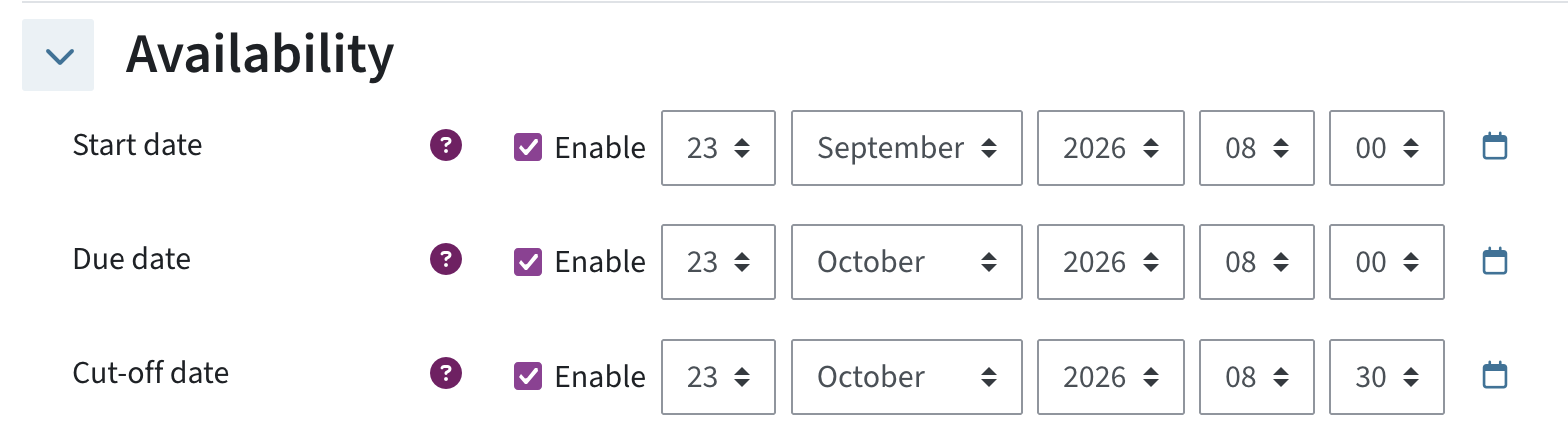
Setting the start date, due date and cut-off date - Group work settings: In the current version, only individual submissions are possible; therefore, there are no settings for group work yet.
- Version control system: At TU Graz, the activity is linked to GitLab for Teaching. This setting cannot be changed.
- Initialise with Readme: If this checkmark is ticked, a default GitLab Readme and a main branch will be created in all repositories. If you want to create empty repositories without branches or content, untick this checkmark.
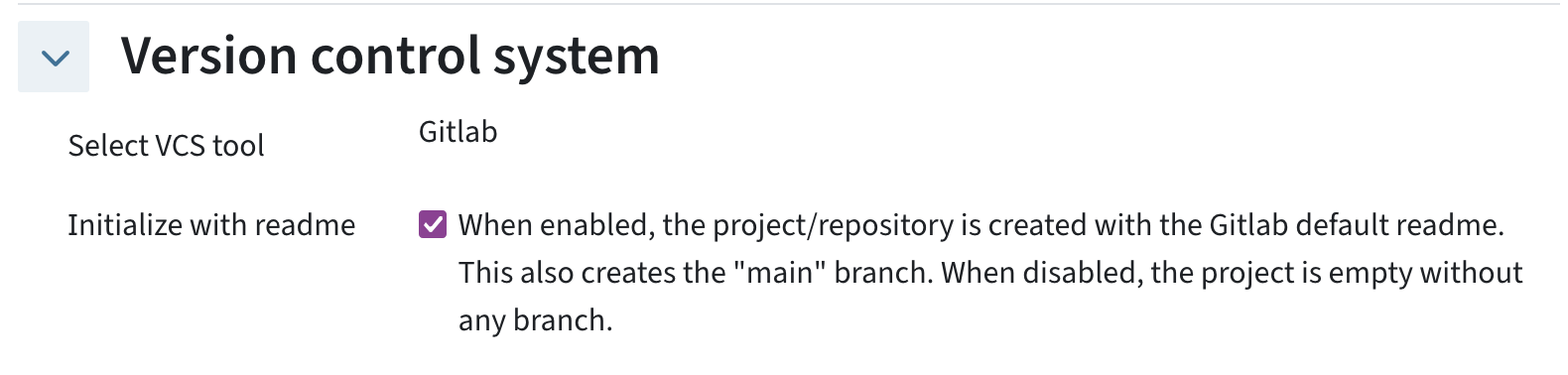
Initialise with readme - Click Save and display.
- You will be taken to an overview page. It shows the two expandable sections Description (if specified in the activity settings) and GitLab (with information about roles and when content in GitLab is deleted), as well as a list of students with filtering options. On this page, you can now create and manage repositories.
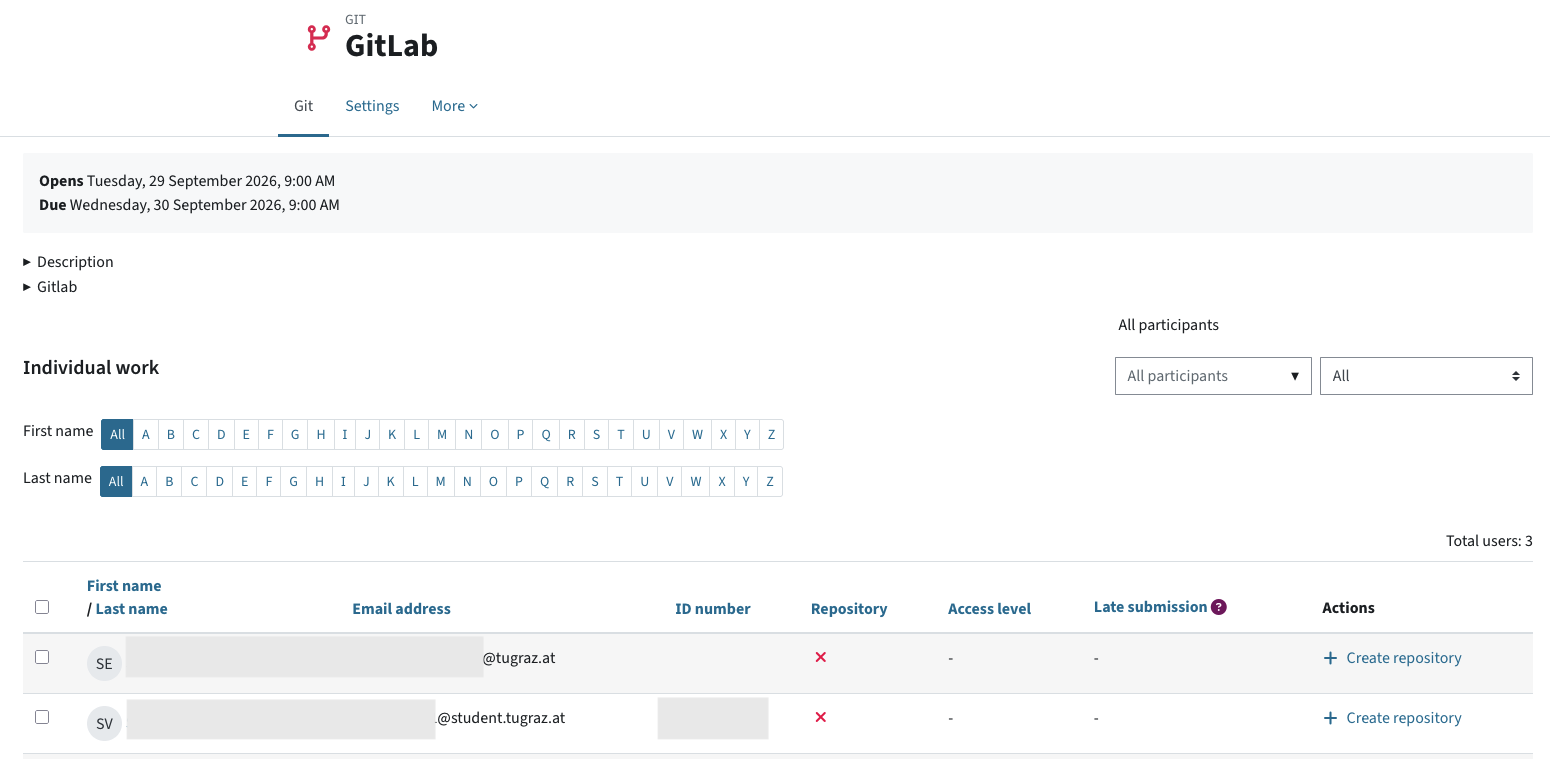
Overview of the Git activity
Creating repositories
If a start date has been set, repositories will be automatically created and write permissions granted at that time.
However, you can also create repositories manually.
- Go to the Git tab.
- To create a repository for individual students, click Create repository in the Actions column for this person and confirm the action.

Create a single repository - To create multiple repositories, select the relevant students and click the Create repositories button in the Selected Users menu.

Create multiple repositories Note: The time it takes to create repositories may vary. You will see a loading icon in the GitLab activity, but you can continue working on your TeachCenter course.
- As soon as repositories for students are available, you will see a link to the respective person’s repository in the overview (URL to the repository).
- Write access is granted automatically on the start date. If no start date has been set, write access must be granted manually.
Managing permissions
- If you have set a date (start or cut-off date) in the settings, write access is automatically granted and revoked. However, you can also change the permissions manually.
- To change the permissions for individual users, click Set access to write or Set access to read next to the relevant person in the list of students.

Set access for single student - To change access rights in bulk, select the relevant students and click the Set access to write or Set access to read button in the Selected users menu.

Set access rights for multiple people
Note on roles:
- Read access correspond to the Reporter role in GitLab. Pushing and merging are not allowed, but students can clone a repository or create issues.
- Write access correspond to the Developer role in GitLab. Pushing and merging are allowed.
- Maintainer access correspond to the Maintainer role in GitLab. Individuals with the teacher and tutor roles in the TeachCenter are assigned this role to allow them to view the students’ repositories.
Please note: If the Git activity is deleted from the TeachCenter course, all repositories associated with that activity will also be deleted!
You can also delete individual students’ repositories:
- In the Git tab, in the list of students, click Delete repository in the Actions column for this student.

Delete a single repository - To delete several repositories at once, select the relevant students and click the Delete repositories button in the Selected users menu.

Delete repositories
The repositories will also be deleted as soon as the TeachCenter course is deleted or reset.
Features planned for future updates
In a future version, it will also be possible to create repositories for groups from the TeachCenter and to enable group submissions.
In a future version of the activity, it will also be possible to use upstream repositories to provide content for all students. At present, only empty repositories or repositories containing a standard README file and a main branch are created.
In a future version of the activity, it will be possible to transfer grades from GitLab back into the TeachCenter.
If you currently wish to add a grade to the GitLab activity in the TeachCenter, you can do so via an additional manually created grade item. Please see the Grading guide for further details.
In a future version, it will be possible to automatically create course-level repositories with reporter access for students. Such a repository can be used for GitLab Pages in teaching.
Guide for students
- To access your repository, open the Git TeachCenter activity.
- There you will find a link to your repository in GitLab for teaching, as well as information about the start date and deadline, additional files and a description, if provided by your teacher(s).
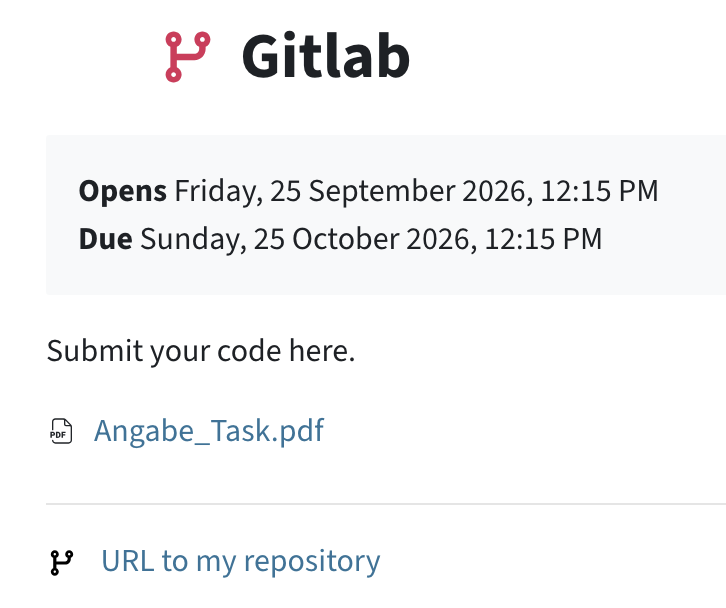
Overview for students - On the start date, you will automatically be granted write access to your repository, unless teachers have set different permissions.
- On the cut-off date, you will automatically lose write access to your repository. Teachers may also set a grace period, meaning you will not immediately lose access on the due date, but your commits will be marked as late.
 TU Graz Educational Technology