#03 – BigBlueButton: Technical tips
Technical Tips for Use in Teaching
BigBlueButton is freely accessible open-source software for video conferencing and is available at Graz University of Technology alongside Webex for video conferences. BigBlueButton allows you to:
- display presentations
- chat with all or individual participants
- share an external video
- use a (multi-user) whiteboard directly on your document (markers/notes, zoom, pointer)
- use breakout rooms for group work
- share your screen
- use the raise hand function
- start a poll
- record the video conference

BigBlueButton is used directly via a TeachCenter course. To participate, teachers and students need a valid TUGRAZonline account. Teachers can create the meeting themselves in the TeachCenter course.
Before the online meeting
Preparing the environment and background
Your environment and background should appear tidy and professional. For example, pay attention to the lighting conditions (not too dark and not too bright) and ensure that the environment is free of any disturbance.
Dealing with sound and audio problems
Enter the virtual classroom in time and check your microphone and camera. If the participants should also use their camera and microphone, ask them to join the meeting early enough. Make sure to open the virtual classroom a little earlier.
Upload presentations in the right format
Animations in PowerPoint presentations and spreadsheets cannot be displayed. It is best to upload your presentation as a PDF with embedded images and standard fonts.
Connect and test graphics tablet
Since sketches are very difficult to create with the mouse, use a graphics tablet and a stylus. Test them before the conference begins.
For examinations: Rights correctly assigned?
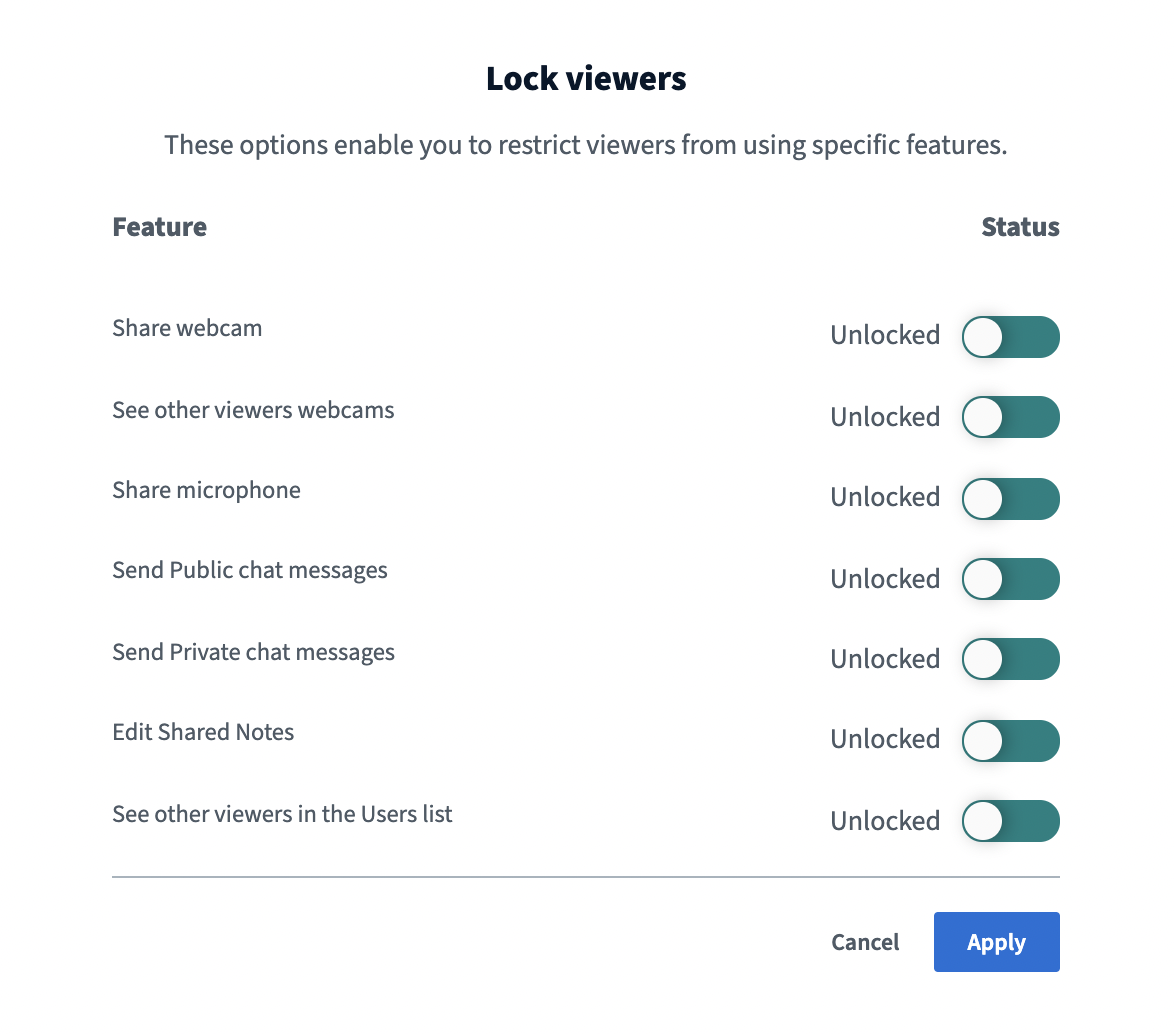
For example, ensure that students cannot see each other and disable private chat between participants to avoid exchange in a targeted manner. To do this, on the gear above the list of participants, click on “Lock viewers” and lock the corresponding fields.
During the online meeting
Avoid disturbing background noise
Mute your microphone when you are not speaking and ask your students to do the same to avoid annoying background noise.
Recording of video conferences
Click “Start recording” directly in the main room if you want to record the video conference. A recording is especially useful for large courses. If students cannot participate in class, they can watch the recording later. The recordings are then available on TUbe.
Avoid transmission problems
With too many cameras turned on at the same time, the connection may break down or stop. Consider this point especially if you want to organize exams with BBB.
You can use BBB for oral individual examinations or submission interviews in small groups, for example.
There is no notification when students leave the meeting. Especially in exam settings, check repeatedly whether all students are still present.
Back up files on time (in breakout rooms)
Files edited in breakout rooms are not available after the breakout rooms are terminated. Remind students in advance to make a backup copy of them or use external tools such as a shared document in the TU Graz cloud to document group work.
Breakout rooms are separate rooms within the main virtual classroom, i.e. additional sub-rooms to the main meeting room. They are useful for dividing a large group into smaller subgroups whose users can talk and collaborate.
At the end of the online meeting
Back up files on time
Comments in presentations, public chat and shared notes will be not be saved as soon as the meeting ends. Make sure to take screenshots of annotations and/or download the chat history and shared notes if they are still needed.
Log out or end meeting
Remember to close the video conference room at the end - just as you would also close the door of a classroom! Note the difference between “End Meeting” and “Logout” for moderators. “Logout” closes the conference for a moderator. ”End Meeting“ ends the meeting for everyone.
You can find out more
about me in the FAQ.

Further tips and instructions for teachers can be found directly on the TELuation website.
In case of technical problems with BBB, please contact the IT Support (ZID)

For didactic tips on using BBB, see the article „BigBlueButton: Didactic Tips for Use in Teaching“ in the Didactics section.
Licensed under a Creative-Commons License CC BY-SA 4.0 International
 Sarah Edelsbrunner, Elisabetta Valgoi, Clarissa Braun (OU Educational Technology, TU Graz)